
Localization Hub Order is a set of Localization Hub Jobs ( items ordered for translation for specific languages).
There are four main tabs in Localization Hub Order — Workspace, Details, Statistics and Activities.
I. Workspace
This is the main tab to work with the content. The view and actions that you can perform here depend on the project workflow steps and service settings. A typical workflow is described below.
1. Step “New”
At this step, you can add the new content, count words, remove content items and reorder items from this order.
Add new content
Before the content is transferred to the translation tool, you can add new content to the order. Click on the “Add Content” button to navigate to the order form.
Count words
To count the number of words in specific jobs, you need to select the jobs and click “Count Words”.
Remove content items
When a content item is not exported to a translation tool yet, you can remove it from the order.
Navigating to the content item in Content
By clicking on the content item ID, you can navigate to the details of the content item. (See Content)
Navigating to the content item in CMS
By clicking on the content item name, you can navigate to the page in the CMS.
Transition to the next step
After you make sure that the order is ready for translation, you can click the transition button to move to the next step. The naming of the transition button can be different as this is a customizable feature (See Workflow settings).
On the transition page, you can:
- Assign someone to the order.
- Review the content items one more time.
- Export content to a translation tool immediately. If you do not want to export content now, you will be able to do this later.
2. Step “In Progress”
If you exported the content during the transition, you would see the link to the translation tool project created. Follow the link to start translation in the translation tool.
What else can you do at this step?
Synchronize
After you mark jobs as completed in the translation tool, click this button to synchronize translation tool job statuses with the Localization Hub job statuses.
Deliver content
Content items marked as Completed can be delivered to CMS. Select items you need to deliver and press “Get Translations”.
Important: do not archive projects in memoQ until the translation is delivered. Otherwise, the memoQ project ID is changed, and it's not possible to identify it in iLangL.
Export jobs
If you have not exported all content at the previous step, you can do this now. Select content items you would like to export and click Export Jobs.
Remove content
You can remove those content items which were not exported to the translation tool.
After you complete the translation in the translation tool, you can complete the order. Click the transition button to do that. On the transition page, you will be offered to deliver the completed content. Activate the toggle if you are ready to deliver the translation.
3. Step “Completed”
At this step, it is supposed that all operations with content are done. However, if the service settings allow, you can still deliver completed content to a CMS.
II. Details
In order details, you can perform the following actions:
- Assign the order to a specific user or a specific role.
- Add notes for other users who have access to the order.
- Add referenced documents for other users who have access to the order.
III. Statistics
View of the “Statistics” tab depends on the order stage. At the “New” step, before the content is exported, you will see only “Statistics by content types” and “Statistics by languages". At the “In Progress” step, “Workflow Statistics” and “Workflow Steps Burn Down” will also appear.
Statistics by content types
This statistic reflects the number of content items of a specific content type defined in CMS.
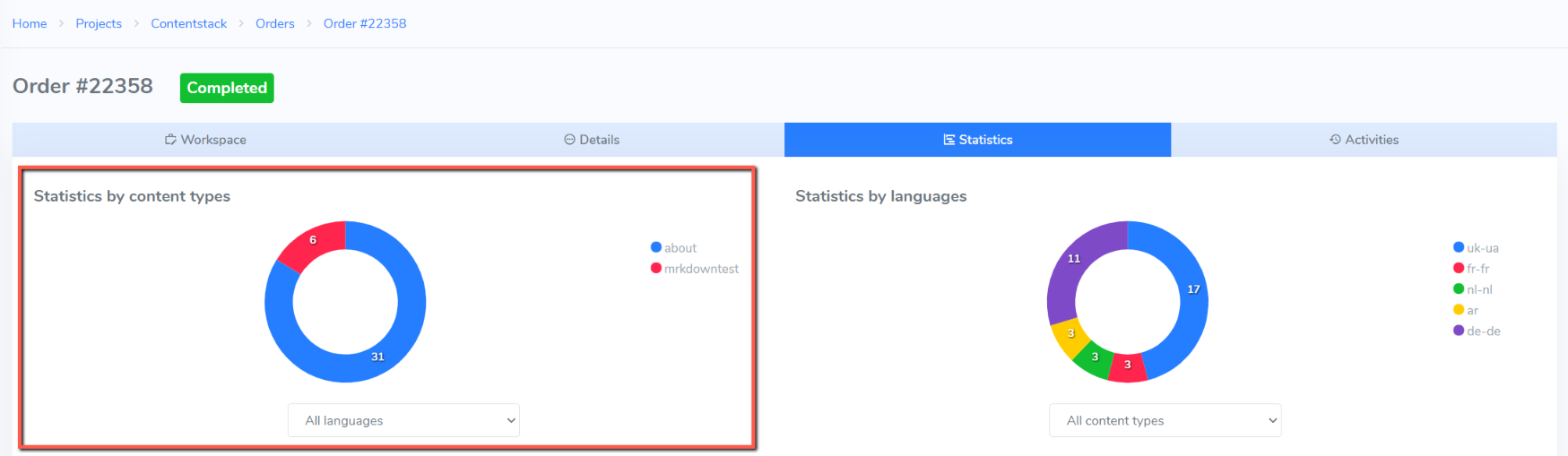 Statistics by languages
It reflects the number of content items ordered for a specific target language.
Workflow Statistics
Shows the status and the number of content items for a certain translation tool workflow step.
Workflow Steps Burn Down
Shows the status and the number of content items for a specific period of time for a certain translation tool workflow step.
IV. Activities
In “Activities”, you will see the details of actions performed in the order. You can see the date, user who took action and other details.
Comments
0 comments
Article is closed for comments.